
Please Note: Your instructor must request Adobe Creative Cloud access for you before you will be able to go through these steps. When using this remote environment, you must save all your files to cloud storage (such as One Drive) before you log off or the session times out. The remote environment deletes all files upon exit.

1.

Log in to your Montco Connect. 


2.

Search for "Adobe Creative Cloud Remote Access" at the top of the webpage, and select the corresponding result.
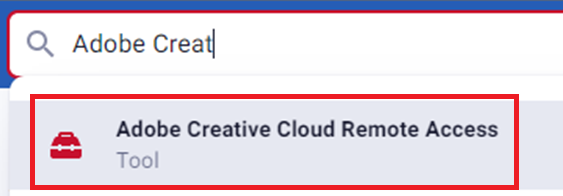
A search bar with the partially typed text "Adobe Creat" filled in. Below the searchbar is a red rectangle bordering the search result titled "Adobe Creative Cloud Remote Access Tool" next to a small red briefcase icon.

3.

Note: There is a waiting period for the virtual machine to turn on. This will typically take less than 2 minutes.
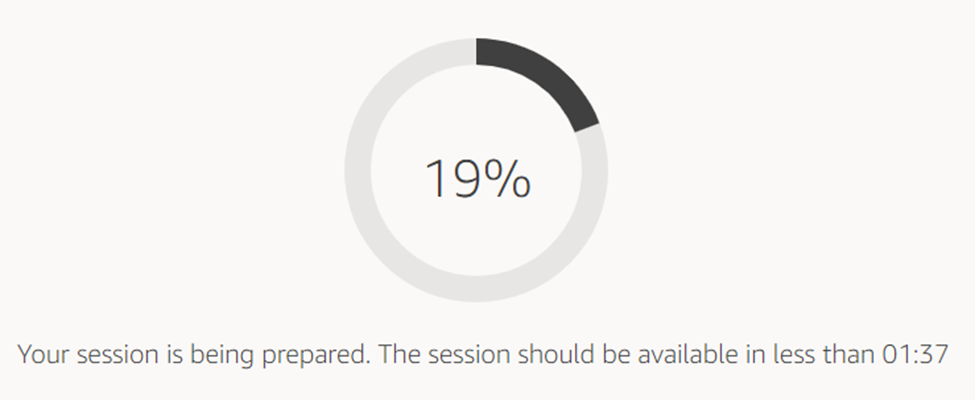
A partially filled circular loading icon with the text "19%" in the middle. Below the loading icon is the text "Your session is being prepared. The session should be available in less than 01:37"

4.

After it finishes loading, select the virtual machine's start menu, and select the Creative Cloud application you wish to use.
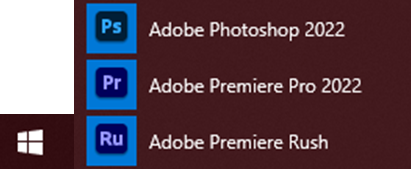

Windows Start Icon. To the left of the icon is a list of programs: the icon for Photoshop with text "Adobe Photoshop 2022", the Adobe Premiere icon with text "Adobe Premiere Pro 2022", and the icon for Adobe Premiere Rush with text "Adobe Premeire Rush"

5.

After the application launches, enter your student email address and select "Continue."
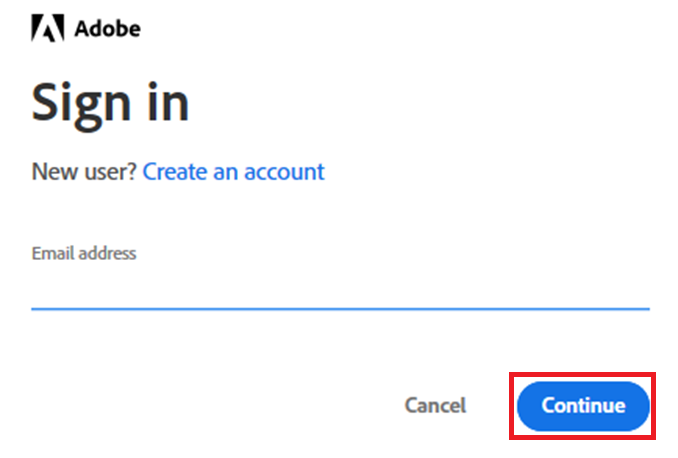
Sign in page for Adobe. Black Adobe Icon at the top left. Below the icon is the title "Sign in." Below the title is the text "New user? Create an account." Below that is the text "Email address" with an empty text field selected. Below the text bar is a grey button labelled "Cancel" and a blue button surrounded by a red rectangle labelled "Continue."

6.

Enter your Montco email address and password, then select "Sign in."
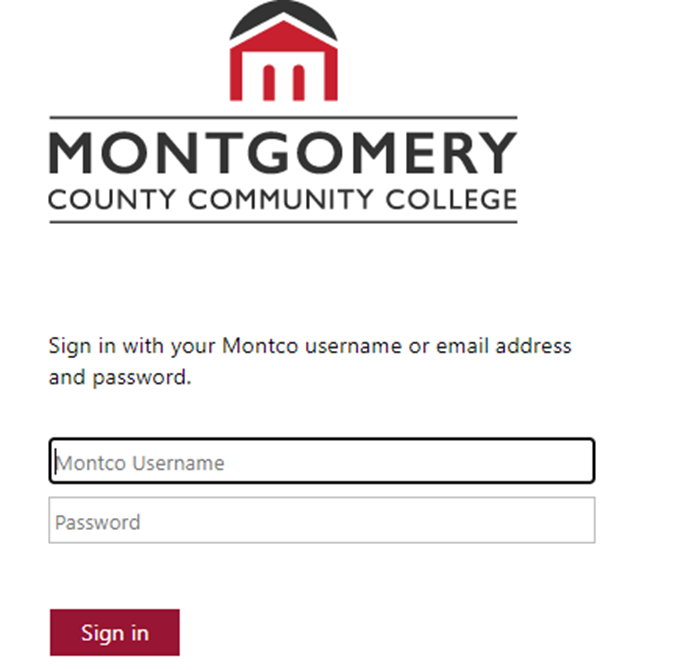
Montgomery County Community College Sign in Page with the college's logo. Below the logo is text "Sign in with your Montco username or email address and password." Below the text are the text fields labelled "Montco Username" and "Password". Below the text fields is a red button labelled "Sign in."

7.

The application you selected will now open for use.


Back to Top