
Please Note: Your instructor must request Adobe Creative Cloud access for you before you will be able to go through these steps. When using this remote environment, you must save all your files to cloud storage (such as One Drive) before you log off or the session times out. The remote environment deletes all files upon exit.
1.
Log in to your Montco Connect.
2.
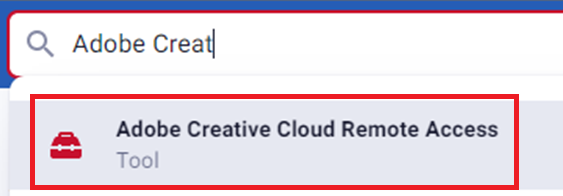
Search for "Adobe Creative Cloud Remote Access" at the top of the webpage, and select the corresponding result.
3.
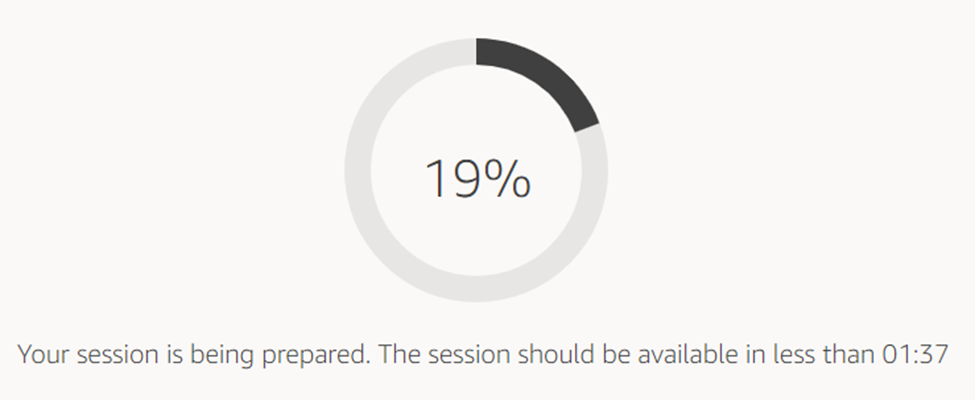
Note: There is a waiting period for the virtual machine to turn on. This will typically take less than 2 minutes.
4.
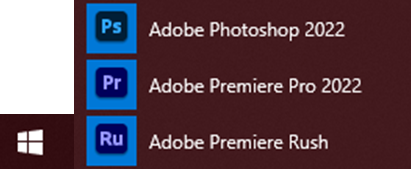
After it finishes loading, select the virtual machine's start menu, and select the Creative Cloud application you wish to use.
5.
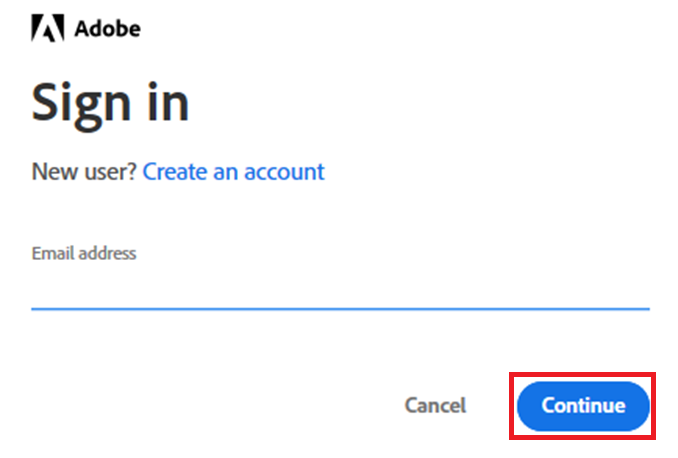
After the application launches, enter your student email address and select "Continue."
6.
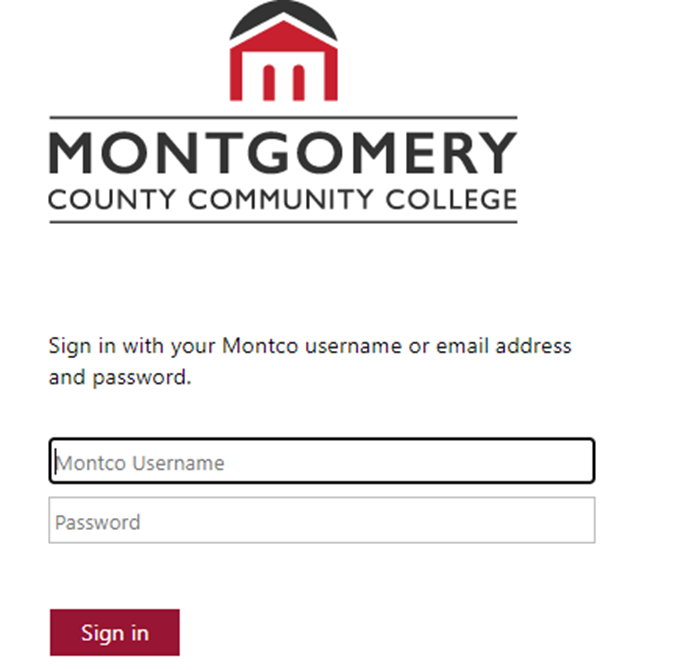
Enter your Montco email address and password, then select "Sign in."
7.
The application you selected will now open for use.