Adobe Creative Cloud is available for you to install on a personal device via your College credentials. The directions below will walk you through how to install Adobe Creative Cloud on your personal device. Directions are available for PC and Mac computers.  

Note: If you wish to install Adobe Creative Cloud on your College issued device, please contact the Help Desk at [email protected].   

Instructions for PC

1.

If you have already installed Adobe Creative Cloud on your computer, please uninstall the old Adobe Creative Cloud and reboot your computer.

If you have not installed Adobe Creative Cloud, proceed to Step 2.


2.

Download Adobe Creative Cloud . 


3.

 Run the installer after it finishes downloading. 


4.

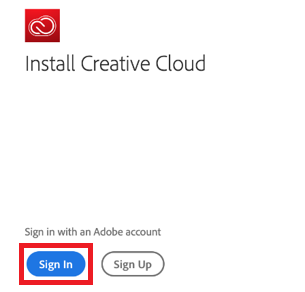
Select "Sign In." 
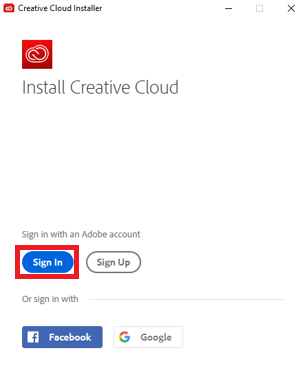
Desktop window titled "Creative Cloud Installer." Adobe Creative Cloud logo with "Install Creative Cloud" text below. Text "Sign in with an Adobe account" with Blue Button surrounded by Red Rectangle labelled "Sign In" beside White Button labelled "Sign Up." Below the buttons is text "Or sign in with" with buttons labelled "Facebook" and "Google" below.

5.

Enter your Montco email address and password, then select "Sign In."
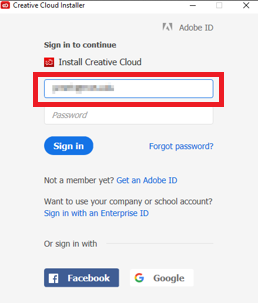
Sign-In window for Adobe "Creative Cloud Installer." Grey Adobe logo with text "Adobe ID" in upper right of window. Below is centered text "Sign in to continue" with Adobe Creative Cloud logo and text "Install Creative Cloud." Below text is a red rectangle surrounding the username portion of sign-in, followed by "Password" portion below. Below is blue button labelled "Sign in" with text "Forgot password?" to the right. Below is text labelled "Not a member yet? Get an Adobe ID" and text "Want to use your company or school account? Sign in with an Enterprise ID" and text "Or sign in with" with buttons labelled "Facebook" and "Google" below.

6.

A new window will appear asking you to choose an account. Select "Company or School Account."
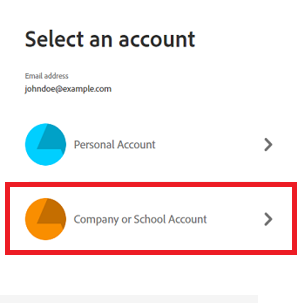
Desktop window titled "Select an account." Below is a white rectangle with text "Email address" with email addres "johndoe@example.com" below. Below is a Blue Circle with text "Personal Account" and a right pointing arrow. Below is a red rectangle surrounding orange circle, text "Company or School Account" and a right pointing arrow.

7.

You will be redirected to a Montco login page. Enter your Montco email address and password, then select "Sign In."

Desktop window labelled "Enterprise ID Sign in." Below is Montgomery County Community College logo. Below is text "Sign in with your MCCC username or email address and password." Below are fill-in options for email address and password. Below is a red button labelled "Sign in." Below is text "Need help? Login assistance and Techinical Help Desk contact information."

8.

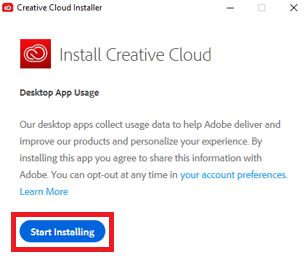
Select "Start Installing."

Desktop window labelled "Creative Cloud Installer." Below is adobe creative cloud logo with text "Install Creative Cloud." Below is paragraph titled "Desktop App Usage" with text "Our desktop apps collect usage data to help Adobe deliver and improve our products and personalize your experience. By installing this app you agree to share this information with Adove. You can opt out at any time in your account preferences. Learn More." Below is a blue button labelled "Start Installing" surrounded by a red rectangle.

9.

After the install finishes the Adobe Creative Cloud app will appear.

You can now decide what applications within Creative Cloud you would like to install (i.e. Photoshop, Illustrator, etc.).

Select "Install" for the Creative Cloud applications you would like to have installed on your device. 
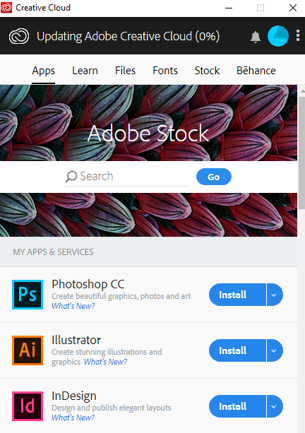
 

Desktop Window titled "Creative Cloud." Below is Creative Cloud logo with text "Updating Adobe Creative Cloud (0%)" a bell icon, a blue circle icon, and a three stacked dots icon. Below are navigation panes labelled "Apps," "Learn," "Files," "Fonts," "Stock," and "Behance." Below is a page titled "Adobe Stock" with options to "Search" and a blue button labelled "Go" below. Below is section titled "My apps & services." Below is the Photoshop Icon with Title "Photoshop CC," with text "Create beautiful graphics, photos and art. What's New?" and with blue button labelled "Install" with drop down options. Below is the Illustrator Icon with Title "Illustrator," with text "Create stunning illustrations and graphics. What's New?" and with blue button labelled "Install" with drop down options. Below is the InDesign icon, with Title "InDesign," with text "Design and publish elegant layouts. What's New?" and with blue button labelled "Install" with drop down options.

10.

Once the downloads have completed, you will be able to launch the software.
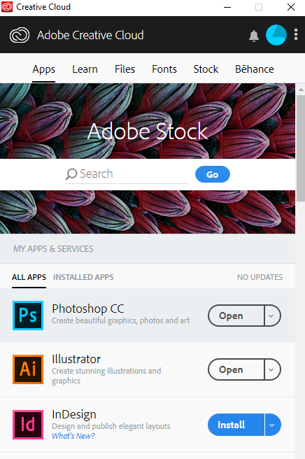
Desktop Window titled "Creative Cloud." Below is Creative Cloud logo with text "Adobe Creative Cloud," a bell icon, a blue circle icon, and a three stacked dots icon. Below are navigation panes labelled "Apps," "Learn," "Files," "Fonts," "Stock," and "Behance." Below is a page titled "Adobe Stock" with options to "Search" and a blue button labelled "Go" below. Below is section titled "My apps & services." Below are navigation panes titled "All Apps" and "Installed Apps" with text "No updates." Below is the Photoshop Icon with Title "Photoshop CC," with text "Create beautiful graphics, photos and art." and with white button labelled "Open" with drop down options. Below is the Illustrator Icon with Title "Illustrator," with text "Create stunning illustrations and graphics." and with with button labelled "Open" with drop down options. Below is the InDesign icon, with Title "InDesign," with text "Design and publish elegant layouts. What's New?" and with blue button labelled "Install" with drop down options.

Back to Top


Instructions for Mac

1.

If you have already installed Adobe Creative Cloud on your computer, please uninstall the old Adobe Creative Cloud and reboot your computer.

If you have not installed Adobe Creative Cloud, proceed to Step 2.


2.

Download Adobe Creative Cloud .


3.

 Run the installer after it finishes downloading. 
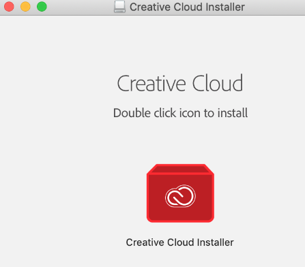
Mac Window titled "Creative Cloud Installer" Below is title "Creative Cloud" with text below "Double click icon to install." Below is a red cube with Creative Cloud logo. Below is text "Creative Cloud Installer."

4.

Select "Sign In." 
Mac window titled "Creative Cloud Installer." Adobe Creative Cloud logo with "Install Creative Cloud" text below. Text "Sign in with an Adobe account" with Blue Button surrounded by Red Rectangle labelled "Sign In" beside White Button labelled "Sign Up." Below the buttons is text "Or sign in with" with buttons labelled "Facebook" and "Google" below.

5.

Enter your Montco email address and password, then select "Sign In."
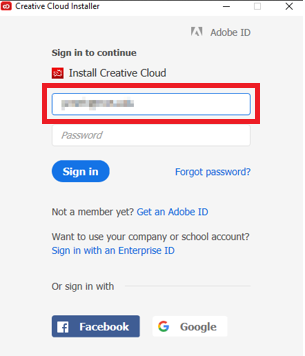
Sign-In window for Adobe "Creative Cloud Installer." Grey Adobe logo with text "Adobe ID" in upper right of window. Below is centered text "Sign in to continue" with Adobe Creative Cloud logo and text "Install Creative Cloud." Below text is a red rectangle surrounding the username portion of sign-in, followed by "Password" portion below. Below is blue button labelled "Sign in" with text "Forgot password?" to the right. Below is text labelled "Not a member yet? Get an Adobe ID" and text "Want to use your company or school account? Sign in with an Enterprise ID" and text "Or sign in with" with buttons labelled "Facebook" and "Google" below.

6.

A new window will appear asking you to choose an account. Select "Enterprise ID."
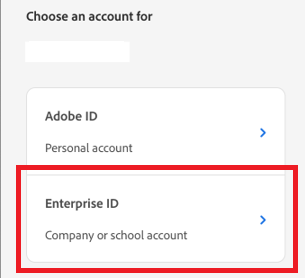
Mac window with text "Choose an account for." Below is option labelled "Adobe ID Personal account" with right facing arrow. Below is a red rectangle surrounding option with text "Enterprise ID Company or school account" and right facing arrow.

7.

You will be redirected to a Montco login page. Enter your Montco email address and password, then select "Sign In."
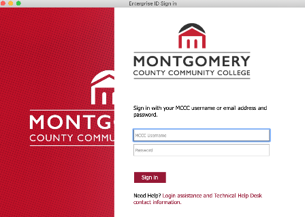
Mac window labelled "Enterprise ID Sign in." Below is Montgomery County Community College logo. Below is text "Sign in with your MCCC username or email address and password." Below are fill-in options for email address and password. Below is a red button labelled "Sign in." Below is text "Need help? Login assistance and Techinical Help Desk contact information."

8.

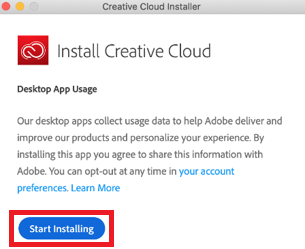
Select "Start Installing."

Mac window labelled "Creative Cloud Installer." Below is adobe creative cloud logo with text "Install Creative Cloud." Below is paragraph titled "Desktop App Usage" with text "Our desktop apps collect usage data to help Adobe deliver and improve our products and personalize your experience. By installing this app you agree to share this information with Adove. You can opt out at any time in your account preferences. Learn More." Below is a blue button labelled "Start Installing" surrounded by a red rectangle.

9.

After the install finishes the Adobe Creative Cloud app will appear.

You can now decide what applications within Creative Cloud you would like to install (i.e. Photoshop, Illustrator, etc.).

Select "Install" for the Creative Cloud applications you would like to have installed on your device. 
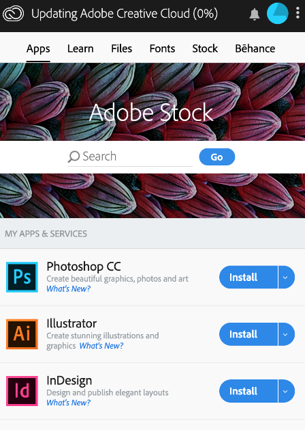
Mac Window titled "Creative Cloud." Below is Creative Cloud logo with text "Updating Adobe Creative Cloud (0%)" a bell icon, a blue circle icon, and a three stacked dots icon. Below are navigation panes labelled "Apps," "Learn," "Files," "Fonts," "Stock," and "Behance." Below is a page titled "Adobe Stock" with options to "Search" and a blue button labelled "Go" below. Below is section titled "My apps & services." Below is the Photoshop Icon with Title "Photoshop CC," with text "Create beautiful graphics, photos and art. What's New?" and with blue button labelled "Install" with drop down options. Below is the Illustrator Icon with Title "Illustrator," with text "Create stunning illustrations and graphics. What's New?" and with blue button labelled "Install" with drop down options. Below is the InDesign icon, with Title "InDesign," with text "Design and publish elegant layouts. What's New?" and with blue button labelled "Install" with drop down options.

10.

Once the downloads have completed, you will be able to launch the software.
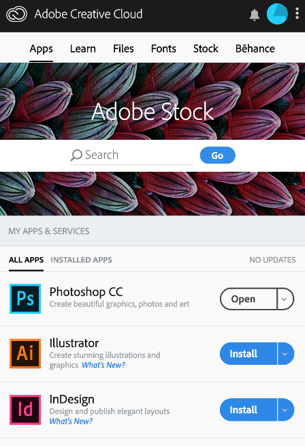
Mac Window titled "Creative Cloud." Below is Creative Cloud logo with text "Adobe Creative Cloud," a bell icon, a blue circle icon, and a three stacked dots icon. Below are navigation panes labelled "Apps," "Learn," "Files," "Fonts," "Stock," and "Behance." Below is a page titled "Adobe Stock" with options to "Search" and a blue button labelled "Go" below. Below is section titled "My apps & services." Below are navigation panes titled "All Apps" and "Installed Apps" with text "No updates." Below is the Photoshop Icon with Title "Photoshop CC," with text "Create beautiful graphics, photos and art." and with white button labelled "Open" with drop down options. Below is the Illustrator Icon with Title "Illustrator," with text "Create stunning illustrations and graphics." and with with button labelled "Open" with drop down options. Below is the InDesign icon, with Title "InDesign," with text "Design and publish elegant layouts. What's New?" and with blue button labelled "Install" with drop down options.

Back to Top