
Read&Write is a literacy support tool that offers help with everyday tasks like reading text out loud, understanding unfamiliar words, researching assignments and proofing written work.
As a member of the College students and staff have access to the software. Below are installation instructions depending on your operating system.
Windows
-
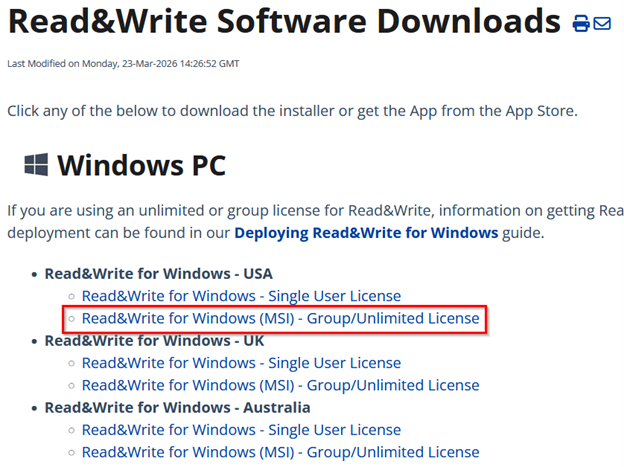
Go to the Read&Write software downloads page.
-
Under the Windows PC section, choose the Group/Unlimited License option for your preferred language.
-
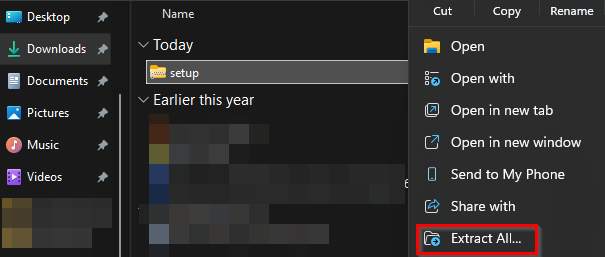
From your computer’s Downloads folder, right-click setup.zip select extract all, then extract.
-
In the setup folder, select and open the Windows Installer Package version of the Setup file to begin the install.
Please note: You may need admin permissions if your device belongs to an organization.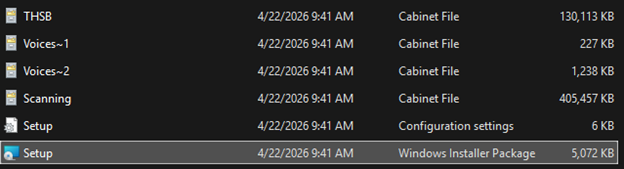
-
Follow the steps in the installation wizard to finish installing the software.
-
Open the application on your desktop after it is installed.
-
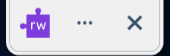
A toolbar will appear on your screen after opening the application. Select the rw puzzle icon.
-
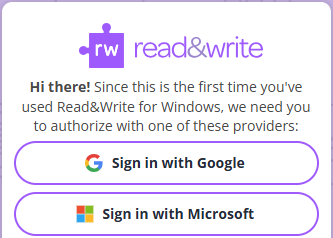
A page will open in your browser asking you to authorize with a provider. Choose Sign in with Microsoft and use your Montco credentials to sign in.
-
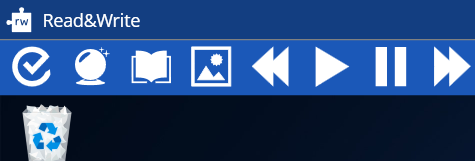
The toolbar should now appear on your screen.
Mac
-
Go to the Read&Write software downloads page.
-
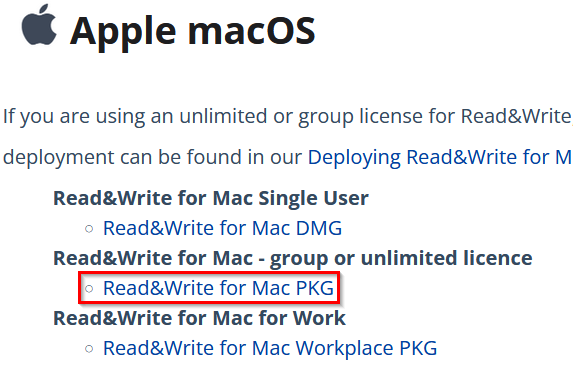
Under the Apple macOS header, choose the download under the group or unlimited license section.
-
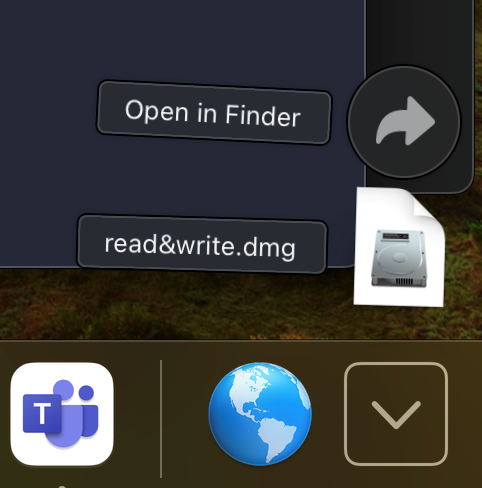
From the Downloads section on the dock, open read&write.pkg and accept the terms and conditions to start the installation process.
Please note: You may need admin permissions if your device belongs to an organization.
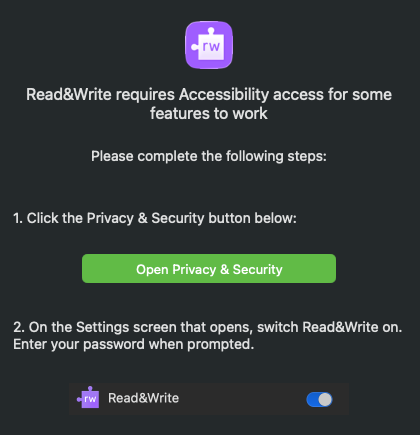
- The application will need permissions for accessibilty in order to work properly.
You will be prompted to open your Privacy & Security settings, follow the instructions on the prompt to provide permission.
- Once the install is finished you should now see a rw puzzle icon on the desktop. Select
the icon to open the application.

- If you are prompted to authorize, choose the Sign in with Microsoft.
- The toolbar should now appear on your screen.
