The College offers free access to the Microsoft Office Suite to students and staff. This article will walk you through installing the desktop version of apps like Word, Excel, and Powerpoint.
1.
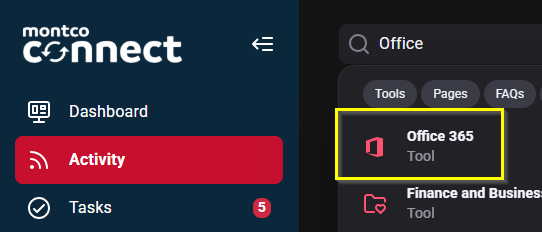
Log into Montco Connect and search Office in the connect search bar. Select Office 365 from the results menu.
2.
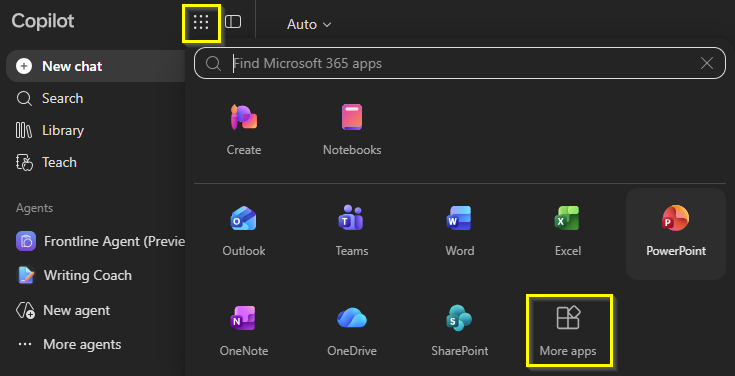
On the top left of the page, select the dots icon to open the apps menu. Select More apps from the menu.
3.
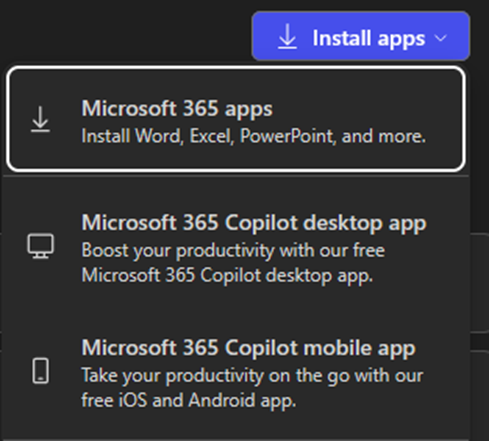
On the top right of the page, select the Install apps dropdown, then select Microsoft 365 apps.
4.
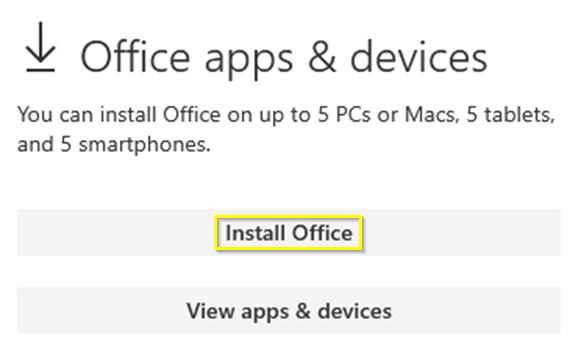
Under Office apps & devices, select Install Office.
5.
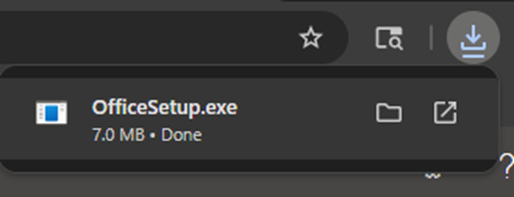
It should now download the OfficeSetup file. Open the download when its finished and follow the instructions to complete installing the Office apps.
Please note: If you are asked to pay or sign in, you should choose that you already have a license and sign in with your mc3 email account.